









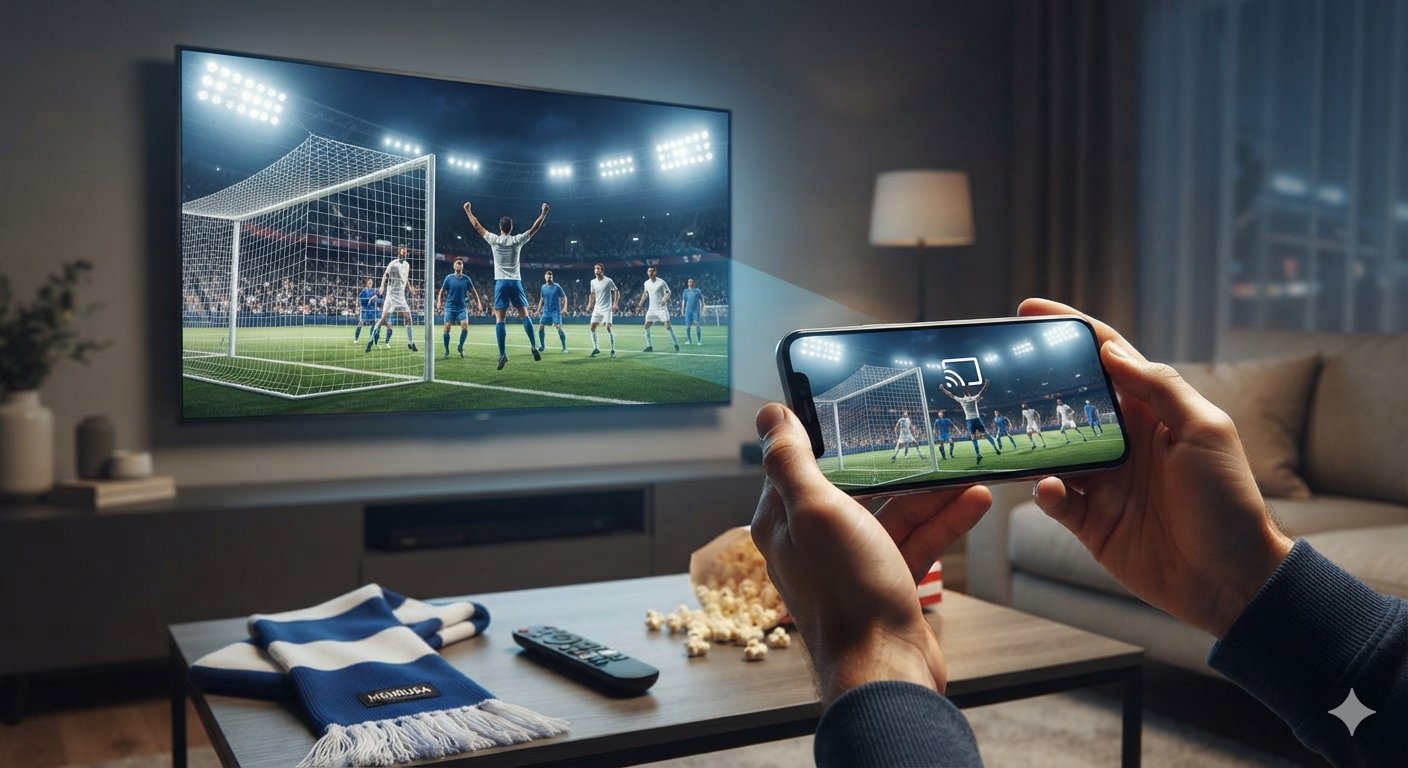
Watching football on a small phone screen can cause you to miss the finest details of the match. To get the stadium experience right in your living room, you can easily cast the live action from your smartphone straight to your television using your home Wi-Fi network.
Before starting, ensure that both your phone and your Smart TV are connected to the exact same Wi-Fi network.
Option 1: Using Android / Google Chromecast (Screen Mirroring)
If you have an Android device, a Google TV, or an external Chromecast dongle, follow these quick steps:
- Swipe down from the top of your Android screen to open the Quick Settings panel.
- Look for and tap the Cast, Smart View, or Screen Cast icon.
- Select your Smart TV or Chromecast device from the list that appears.
- Once your phone screen appears on the TV, open your mobile browser and head over to Menbusa.
- Launch your football stream and rotate your phone sideways into landscape mode for a full-screen television experience.
Option 2: Using Apple iPhone / AirPlay
If you are streaming from an iPhone to an Apple TV, a Roku device, or an AirPlay-compatible Smart TV (Samsung, LG, or Sony):
- Open your Safari or Chrome browser on your iPhone and visit Menbusa.
- Start the live football match stream and tap the Full Screen icon on the video player.
- Swipe down from the top-right corner of your iPhone screen to open the Control Center.
- Tap the Screen Mirroring icon (represented by two overlapping rectangles).
- Choose your Smart TV from the device menu, and the stream will instantly shift to your big screen.
Troubleshooting Quick Tips
- No Video Sound? Make sure your phone’s media volume is turned all the way up and that your physical mute switch (on iPhones) is turned off.
- Lag or Buffering? Disconnect other heavy bandwidth-consuming devices from your Wi-Fi router to ensure your casting stream gets maximum data priority.